QtD是一套讓DMD可以使用Qt的程式庫,安裝有點小複雜,所以把過程寫在這裡:
DMD就直接用2.053
Qt SDK 4.6, 要利用這套套件裡面的GCC來編譯,而且相關的環境參數也會幫我們設定好
implib tool
cmake 2.6 or newer
當然,你還要有hg這套原始碼管理套件
2011-11-08

2008-08-13
PyQt -- Signals and Slots
接下來這個範例,主要是介紹Qt獨特有的Signals and Slots的技術,PyQt本身也有繼承這個高階的呼叫方式,所以需要特別介紹一下:
要注意,這個範例裡面使用了QDial與QSpinBox兩個Widget. 這兩個Widget都有用到valueChanged()這個signal. 而且也是利用了這個signal來交換資訊。當QDial透過SIGNAL("ValueChanged(int)")接受到數值改變的指令後,就用setValue(int)去告知QspinBox; 反之亦然. 所以當你改變任何一邊的數值時, 另外一邊的也隨之變化.
#!/usr/bin/env python
# Copyright (c) 2007-8 Qtrac Ltd. All rights reserved.
# This program or module is free software: you can redistribute it and/or
# modify it under the terms of the GNU General Public License as published
# by the Free Software Foundation, either version 2 of the License, or
# version 3 of the License, or (at your option) any later version. It is
# provided for educational purposes and is distributed in the hope that
# it will be useful, but WITHOUT ANY WARRANTY; without even the implied
# warranty of MERCHANTABILITY or FITNESS FOR A PARTICULAR PURPOSE. See
# the GNU General Public License for more details.

import sys
from PyQt4.QtCore import *
from PyQt4.QtGui import *

class Form(QDialog):

  def __init__(self, parent=None):
      super(Form, self).__init__(parent)

      dial = QDial()
      dial.setNotchesVisible(True)
      spinbox = QSpinBox()

      layout = QHBoxLayout()
      layout.addWidget(dial)
      layout.addWidget(spinbox)
      self.setLayout(layout)

      self.connect(dial, SIGNAL("valueChanged(int)"),
                   spinbox.setValue)
      self.connect(spinbox, SIGNAL("valueChanged(int)"),
                   dial.setValue)
      self.setWindowTitle("Signals and Slots")


class Form2(QDialog):

  def __init__(self, parent=None):
      super(Form2, self).__init__(parent)

      dial = QDial()
      dial.setNotchesVisible(True)
      spinbox = QSpinBox()

      layout = QHBoxLayout()
      layout.addWidget(dial)
      layout.addWidget(spinbox)
      self.setLayout(layout)

      self.connect(dial, SIGNAL("valueChanged(int)"),
                   spinbox, SLOT("setValue(int)"))
      self.connect(spinbox, SIGNAL("valueChanged(int)"),
                   dial, SLOT("setValue(int)"))
      self.setWindowTitle("Signals and Slots")


class ZeroSpinBox(QSpinBox):

  zeros = 0

  def __init__(self, parent=None):
      super(ZeroSpinBox, self).__init__(parent)
      self.connect(self, SIGNAL("valueChanged(int)"), self.checkzero)


  def checkzero(self):
      if self.value() == 0:
          self.zeros += 1
          self.emit(SIGNAL("atzero"), self.zeros)


class Form3(QDialog):

  def __init__(self, parent=None):
      super(Form3, self).__init__(parent)

      dial = QDial()
      dial.setNotchesVisible(True)
      zerospinbox = ZeroSpinBox()

      layout = QHBoxLayout()
      layout.addWidget(dial)
      layout.addWidget(zerospinbox)
      self.setLayout(layout)

      self.connect(dial, SIGNAL("valueChanged(int)"),
                   zerospinbox, SLOT("setValue(int)"))
      self.connect(zerospinbox, SIGNAL("valueChanged(int)"),
                   dial, SLOT("setValue(int)"))
      self.connect(zerospinbox, SIGNAL("atzero"), self.announce)
      self.setWindowTitle("Signals and Slots")


  def announce(self, zeros):
      print "ZeroSpinBox has been at zero %d times" % zeros


class Form4(QDialog):

  def __init__(self, parent=None):
      super(Form4, self).__init__(parent)

      lineedit = QLineEdit()

      layout = QHBoxLayout()
      layout.addWidget(lineedit)
      self.setLayout(layout)

      self.connect(lineedit, SIGNAL("textChanged(QString)"),
                   self.consoleEcho)
      self.setWindowTitle("Signals and Slots")


  def consoleEcho(self, text):
      print unicode(text)


class TaxRate(QObject):

  def __init__(self):
      super(TaxRate, self).__init__()
      self.__rate = 17.5


  def rate(self):
      return self.__rate


  def setRate(self, rate):
      if rate != self.__rate:
          self.__rate = rate
          self.emit(SIGNAL("rateChanged"), self.__rate)


def rateChanged(value):
  print "TaxRate changed to %.2f%%" % value


app = QApplication(sys.argv)
form = None
if len(sys.argv) == 1 or sys.argv[1] == "1":
  form = Form()
elif sys.argv[1] == "2":
  form = Form2()
elif sys.argv[1] == "3":
  form = Form3()
elif sys.argv[1] == "4":
  form = Form4()
if form is not None:
  form.show()
  app.exec_()
else: # if sys.argv[1] == "5"
  vat = TaxRate()
  vat.connect(vat, SIGNAL("rateChanged"), rateChanged)
  vat.setRate(17.5)    # No change will occur (new rate is the same)
  vat.setRate(8.5)     # A change will occur (new rate is different)
要注意,這個範例裡面使用了QDial與QSpinBox兩個Widget. 這兩個Widget都有用到valueChanged()這個signal. 而且也是利用了這個signal來交換資訊。當QDial透過SIGNAL("ValueChanged(int)")接受到數值改變的指令後,就用setValue(int)去告知QspinBox; 反之亦然. 所以當你改變任何一邊的數值時, 另外一邊的也隨之變化.
2008-08-12
PyQt -- 匯率換算
PyQt同時兼具Python與Qt的優點--你可以隨時採用Python原本就具有的功能,也可以快速地描繪出一個你所需要的GUI視窗。接下來的匯率換算程式,是一個很好的範例:
照例又是從load library開始, 不過這裡要特別注意有個比較特別的,就是
接下來照例還是宣告視窗的class. 這裡提供了兩個QComboBox跟一個QDoubleSpinBox,並且可以給定範圍與起始值。
這裡是用來排列前面三個box的位置, 你可以看到0,0~2,1的數字,它就是像矩陣一樣,分別從0,0;0,1;1,0;1,1;2,0;2,1.但是因為沒有指定任何box給0,1所以那裡會是空的。接著就是定義連接的動作,之後就是自我定義的函式,把資料讀進來,並且放入rates這個dictionary並且排序等等動作,你可以看程式碼來理解。
#!/usr/bin/env python
# Copyright (c) 2007-8 Qtrac Ltd. All rights reserved.
# This program or module is free software: you can redistribute it and/or
# modify it under the terms of the GNU General Public License as published
# by the Free Software Foundation, either version 2 of the License, or
# version 3 of the License, or (at your option) any later version. It is
# provided for educational purposes and is distributed in the hope that
# it will be useful, but WITHOUT ANY WARRANTY; without even the implied
# warranty of MERCHANTABILITY or FITNESS FOR A PARTICULAR PURPOSE. See
# the GNU General Public License for more details.

import sys
import urllib2
from PyQt4.QtCore import *
from PyQt4.QtGui import *


class Form(QDialog):

    def __init__(self, parent=None):
        super(Form, self).__init__(parent)

        date = self.getdata()
        rates = sorted(self.rates.keys())

        dateLabel = QLabel(date)
        self.fromComboBox = QComboBox()
        self.fromComboBox.addItems(rates)
        self.fromSpinBox = QDoubleSpinBox()
        self.fromSpinBox.setRange(0.01, 10000000.00)
        self.fromSpinBox.setValue(1.00)
        self.toComboBox = QComboBox()
        self.toComboBox.addItems(rates)
        self.toLabel = QLabel("1.00")
        grid = QGridLayout()
        grid.addWidget(dateLabel, 0, 0)
        grid.addWidget(self.fromComboBox, 1, 0)
        grid.addWidget(self.fromSpinBox, 1, 1)
        grid.addWidget(self.toComboBox, 2, 0)
        grid.addWidget(self.toLabel, 2, 1)
        self.setLayout(grid)
        self.connect(self.fromComboBox,
                SIGNAL("currentIndexChanged(int)"), self.updateUi)
        self.connect(self.toComboBox,
                SIGNAL("currentIndexChanged(int)"), self.updateUi)
        self.connect(self.fromSpinBox,
                SIGNAL("valueChanged(double)"), self.updateUi)
        self.setWindowTitle("Currency")


    def updateUi(self):
        to = unicode(self.toComboBox.currentText())
        from_ = unicode(self.fromComboBox.currentText())
        amount = (self.rates[from_] / self.rates[to]) * \
                 self.fromSpinBox.value()
        self.toLabel.setText("%0.2f" % amount)


    def getdata(self): # Idea taken from the Python Cookbook
        self.rates = {}
        try:
            date = "Unknown"
            fh = urllib2.urlopen("http://www.bankofcanada.ca"
                                 "/en/markets/csv/exchange_eng.csv")
            for line in fh:
                line = line.rstrip()
                if not line or line.startswith(("#", "Closing ")):
                    continue
                fields = line.split(",")
                if line.startswith("Date "):
                    date = fields[-1]
                else:
                    try:
                        value = float(fields[-1])
                        self.rates[unicode(fields[0])] = value
                    except ValueError:
                        pass
            return "Exchange Rates Date: " + date
        except Exception, e:
            return "Failed to download:\n%s" % e


app = QApplication(sys.argv)
form = Form()
form.show()
app.exec_()
import sys
import urllib2
from PyQt4.QtCore import *
from PyQt4.QtGui import *
照例又是從load library開始, 不過這裡要特別注意有個比較特別的,就是
import urllib2。它是一個用來呼叫跟internet有關函式的library. 而這回我們要利用裡面的函式到網路上去抓檔案。self.fromComboBox = QComboBox()
self.fromComboBox.addItems(rates)
self.fromSpinBox = QDoubleSpinBox()
self.fromSpinBox.setRange(0.01, 10000000.00)
self.fromSpinBox.setValue(1.00)
self.toComboBox = QComboBox()
self.toComboBox.addItems(rates)
self.toLabel = QLabel("1.00")
接下來照例還是宣告視窗的class. 這裡提供了兩個QComboBox跟一個QDoubleSpinBox,並且可以給定範圍與起始值。
grid = QGridLayout()
        grid.addWidget(dateLabel, 0, 0)
        grid.addWidget(self.fromComboBox, 1, 0)
        grid.addWidget(self.fromSpinBox, 1, 1)
        grid.addWidget(self.toComboBox, 2, 0)
        grid.addWidget(self.toLabel, 2, 1)
        self.setLayout(grid)
這裡是用來排列前面三個box的位置, 你可以看到0,0~2,1的數字,它就是像矩陣一樣,分別從0,0;0,1;1,0;1,1;2,0;2,1.但是因為沒有指定任何box給0,1所以那裡會是空的。接著就是定義連接的動作,之後就是自我定義的函式,把資料讀進來,並且放入rates這個dictionary並且排序等等動作,你可以看程式碼來理解。
2008-08-07
C++ -- 免費的電子書
在寫Rapid GUI Programming with Python and Qt的作者網站上,找到他慷慨提供的一本書--C++ GUI Programming with Qt 4 (first edition). 這本書已經出第二版,這份是僅供紙本,但是第一版就已經改成Open Publication License, 並用PDF提供有需要的人下載閱讀.
依照網站的描述,據說有中文版,不過我猜是大陸人翻譯的吧?!
依照網站的描述,據說有中文版,不過我猜是大陸人翻譯的吧?!
PyQt Sample -- Calculater
這是個來自Qtrac的程式,出自Rapid GUI PRogramming with Python and Qt一書.
一開始為了傳遞參數跟使用所有數學函數,所以匯入sys跟math這兩個函式庫. 其次是把QtCore跟QtGui這兩個PyQT函式庫也匯入.這樣就可以繼續…
一般的GUI的Form是透過class來呈現,回應使用者的互動部份才是透過method, 而主程式通常都很短! 這裡的class 用了super()是用來設定這視窗,因為它是最上一層,所以parent=None. 而QTextBrowser則是一個只能顯示而不能修改的瀏覽區域, 透過QLineEdit則是可以提供一行的編輯區域。QVBoxLayout則是把視窗設定為垂直的排列, 先是browser區,後是lineedit區. 而當有人按下return鍵, 將會更新Ui畫面, 而updateUi則是一個使用者定義的function.
因為Python預設都是處理unicode的字串,所以儘快把取得的字串轉為unicode, 是相當必要的一步!browser既然稱為browser, 自然可以接受html的指令,所以在這裡,我們可以看到有相關指令出現在輸出字串裡面. eval()用來判斷這字串是否有效,如果無效,就提出警示.
而最後,我們果然看到很短的main function...
#!/usr/bin/env python
# Copyright (c) 2007-8 Qtrac Ltd. All rights reserved.
# This program or module is free software: you can redistribute it and/or
# modify it under the terms of the GNU General Public License as published
# by the Free Software Foundation, either version 2 of the License, or
# version 3 of the License, or (at your option) any later version. It is
# provided for educational purposes and is distributed in the hope that
# it will be useful, but WITHOUT ANY WARRANTY; without even the implied
# warranty of MERCHANTABILITY or FITNESS FOR A PARTICULAR PURPOSE. See
# the GNU General Public License for more details.

from __future__ import division
import sys
from math import *
from PyQt4.QtCore import *
from PyQt4.QtGui import *


class Form(QDialog):

def __init__(self, parent=None):
 super(Form, self).__init__(parent)
 self.browser = QTextBrowser()
 self.lineedit = QLineEdit("Type an expression and press Enter")
 self.lineedit.selectAll()
 layout = QVBoxLayout()
 layout.addWidget(self.browser)
 layout.addWidget(self.lineedit)
 self.setLayout(layout)
 self.lineedit.setFocus()
 self.connect(self.lineedit, SIGNAL("returnPressed()"),
              self.updateUi)
 self.setWindowTitle("Calculate")


def updateUi(self):
 try:
     text = unicode(self.lineedit.text())
     self.browser.append("%s = %s" % (text, eval(text)))
 except:
     self.browser.append(
             "%s is invalid!" % text)


app = QApplication(sys.argv)
form = Form()
form.show()
app.exec_()
from __future__ import division
import sys
from math import *
from PyQt4.QtCore import *
from PyQt4.QtGui import *
一開始為了傳遞參數跟使用所有數學函數,所以匯入sys跟math這兩個函式庫. 其次是把QtCore跟QtGui這兩個PyQT函式庫也匯入.這樣就可以繼續…
class Form(QDialog):
def __init__(self, parent=None):
 super(Form, self).__init__(parent)
 self.browser = QTextBrowser()
 self.lineedit = QLineEdit("Type an expression and press Enter")
 self.lineedit.selectAll()
 layout = QVBoxLayout()
 layout.addWidget(self.browser)
 layout.addWidget(self.lineedit)
 self.setLayout(layout)
 self.lineedit.setFocus()
 self.connect(self.lineedit, SIGNAL("returnPressed()"),
              self.updateUi)
 self.setWindowTitle("Calculate")
一般的GUI的Form是透過class來呈現,回應使用者的互動部份才是透過method, 而主程式通常都很短! 這裡的class 用了super()是用來設定這視窗,因為它是最上一層,所以parent=None. 而QTextBrowser則是一個只能顯示而不能修改的瀏覽區域, 透過QLineEdit則是可以提供一行的編輯區域。QVBoxLayout則是把視窗設定為垂直的排列, 先是browser區,後是lineedit區. 而當有人按下return鍵, 將會更新Ui畫面, 而updateUi則是一個使用者定義的function.
def updateUi(self):
 try:
     text = unicode(self.lineedit.text())
     self.browser.append("%s = %s" % (text, eval(text)))
 except:
     self.browser.append(
             "%s is invalid!" % text)
因為Python預設都是處理unicode的字串,所以儘快把取得的字串轉為unicode, 是相當必要的一步!browser既然稱為browser, 自然可以接受html的指令,所以在這裡,我們可以看到有相關指令出現在輸出字串裡面. eval()用來判斷這字串是否有效,如果無效,就提出警示.
而最後,我們果然看到很短的main function...
2008-08-03
Python -- GUI solution Qt & GTK+
使用Python開發軟體,是一個挺快速簡單的方式。現在的軟體幾乎沒有GUI就很難讓人願意使用,所以選擇一個好用的GUI也很重要。這裡是兩種挺成熟 的平台可供Python使用者來選擇--Qt & GTK+. 前者是KDE的基礎後者則是Gnome的基礎...
之前介紹過eric這個Python專用的IDE開發工具,最近發現一個更加簡單的安裝方式--那就是直接下載PyQt all in one. 但是這只能針對Windows開發環境來使用而已。
它直接包含以下套件
有興趣的人可以參考看看.
之前介紹過eric這個Python專用的IDE開發工具,最近發現一個更加簡單的安裝方式--那就是直接下載PyQt all in one. 但是這只能針對Windows開發環境來使用而已。
它直接包含以下套件
- PyQt
- Qt (with database support for SQLite3 and ODBC)
- Qt Designer
- Qt Linguist
- Qt Assistant
- pyuic4
- pylupdate4
- lrelease
- pyrcc4
- QScintilla
有興趣的人可以參考看看.
2008-07-31
PyQt Sample -- 指定程式的Icon
第二個範例
Refer from The PyQt4 tutorial
這個程式用來解釋如果改變程式顯示在Title處的Icon.
Python本身可以用傳統方式跟OOP方式來撰寫程式碼。OOP裡面最重要的三件事為classes, data與method. 這裡建立一個Icon class, 並繼承自QtGui.QWidget. __init__這時候幫我們呼叫兩個構件函數,一個是self代表自身,其次就代表繼承的class.
接下來這三個class都繼承自QtGui.QWidget:setGeometry用來設定視窗起始位置與尺寸,前兩個代表位置的x,y;而後兩個代表尺寸.而QIcon這個元件則是用來告知Icon所在位置.
Refer from The PyQt4 tutorial
這個程式用來解釋如果改變程式顯示在Title處的Icon.
# icon.py
import sys
from PyQt4 import QtGui

class Icon(QtGui.QWidget):
    def __init__(self, parent=None):
        QtGui.QWidget.__init__(self, parent)
        self.setGeometry(300, 300, 250, 150)
        self.setWindowTitle('Icon')
        self.setWindowIcon(QtGui.QIcon('icons/web.png'))

app = QtGui.QApplication(sys.argv)
icon = Icon()
icon.show()
sys.exit(app.exec_())
class Icon(QtGui.QWidget):
     def __init__(self, parent=None):
         QtGui.QWidget.__init__(self, parent)
Python本身可以用傳統方式跟OOP方式來撰寫程式碼。OOP裡面最重要的三件事為classes, data與method. 這裡建立一個Icon class, 並繼承自QtGui.QWidget. __init__這時候幫我們呼叫兩個構件函數,一個是self代表自身,其次就代表繼承的class.
self.setGeometry(300, 300, 250, 150)
 self.setWindowTitle('Icon')
 self.setWindowIcon(QtGui.QIcon('icons/web.png'))
接下來這三個class都繼承自QtGui.QWidget:setGeometry用來設定視窗起始位置與尺寸,前兩個代表位置的x,y;而後兩個代表尺寸.而QIcon這個元件則是用來告知Icon所在位置.
PyQt Sample -- 建立基本視窗
第一個範例
Refer from The PyQt4 tutorial
這是告訴你如何開始撰寫一個基本的PyQt程式:
這是一個PyQt程式必定會要宣告的部份。從PyQt4裡面叫出跟GUI有關的QtGui
每一個PyQt4程式也都需要建議程式元件,而程式元件則是在QtGui裡面。sys.argv則是把命令列裡面的參數給讀進來。
Qwidget是PyQt4使用者介面中最基本的class。這行指令給一個預設的產生者,而且沒有親代。沒有親代的widget就稱為windows。接著我們給定這視窗的尺寸,也給定視窗標題。接著就讓系統繪製出這個視窗。
接著就進入這程式的主迴圈。
Refer from The PyQt4 tutorial
這是告訴你如何開始撰寫一個基本的PyQt程式:
# sample1.py
import sys
from PyQt4 import QtGui
app = QtGui.QApplication(sys.argv)
widget = QtGui.QWidget()
widget.resize(250, 150)
widget.setWindowTitle('simple')
widget.show()
sys.exit(app.exec_())
import sys
from PyQt4 import QtGui
這是一個PyQt程式必定會要宣告的部份。從PyQt4裡面叫出跟GUI有關的QtGui
app = QtGui.QApplication(sys.argv)
每一個PyQt4程式也都需要建議程式元件,而程式元件則是在QtGui裡面。sys.argv則是把命令列裡面的參數給讀進來。
widget = QtGui.QWidget()
widget.resize(250, 150)
widget.setWindowTitle('simple')
widget.show()
Qwidget是PyQt4使用者介面中最基本的class。這行指令給一個預設的產生者,而且沒有親代。沒有親代的widget就稱為windows。接著我們給定這視窗的尺寸,也給定視窗標題。接著就讓系統繪製出這個視窗。
sys.exit(app.exec_())
接著就進入這程式的主迴圈。
PyQt -- 優點
Python的跨平台GUI程式設計,除了PyQt之外,還有Tkinter, wxPython, FxPy, PyGTK等,但基於以下的優點,我選擇了PyQT!!!
PyQt 主要的好處有:
PyQt是由Python, Qt與PyQt三者組成。
PyQt 主要的好處有:
- 採用 Trolltechs 提供的C++ Qt toolkit.
- 支援 Windows,Unix/X11與 Apple's OS X
- 採用 signals/slots 技術來統合 GUI 的項目與動作.
- 與大多數的 Qt library完整結合
- 允許在Python內來使用 Qt classes
- 可以讓程式看起來像 Windows, Motif, CDE, SGI 與 MacOS X的外表, 也可以自訂.
- 提供許多先進的 GUI 控制,可以直接支援RTF, Canvas等控制.
PyQt是由Python, Qt與PyQt三者組成。
2008-07-30

2008-07-21
Python -- The eric Python IDE
最近在看Qt4, 結果就看到eric這個為了Python與Ruby開發的IDE工具。它本身是用Python+Qt寫出來的,因此這正可以當作希望學習Python與Qt者的一個好範例,當這個語言可以自己寫出來一個IDE來開發自己的時候,其實我覺得這就代表它的功能是很普遍性的!
當你希望使用eric的時候,除了下載eric外,你還需要
1. Python -- 你要學習它,怎會不下載它呢?!我用的是2.5.2版
2. Qt4 -- 你可以下載4.4.0 open source版,順帶你就需要下載MinGW(我用5.1.4版,gcc是3.4,記得一定要下載make)
3. QScintilla2, sip and PyQt4 -- 這三個都是使用eric必要的套件, 都可以在Riverbanking Computing的網站找到並下載.這三個套件的使用版本是2.2, 4.7.6, 4.4.2
準備事項
下載之後,因為都需要解開到一個目錄裡面,你一定要清楚你所安裝的目錄在哪裡,以下指令都是鄉對於套件的目錄所給的路徑.
步驟:
1. Install Python,Qt4--這兩個都是執行檔,輕鬆簡單,甚至...就是一步步地按下去就好.但是Qt4要記得在安裝好了之後run一下build debug libraries.
2. Build and install sip
>python configure.py -p win32-g++
>make
>make install
3. Build and install QScintilla2
>cd Qt4
>qmake qscintilla.pro
>make
>make install
4. Build and install PyQt4
>python configure.py
>make
>make install
5. Build and install QScintilla2 Python bindings
>cd Python
>python configure.py
>make
>make install
copy Qscintilla2\Qt4\Release\qscintilla2.dll c:\windows\system32
6. Install eric4
python install.py
之後你在eric目錄裡面會找到eric4.bat(依照我的例子),執行它,你就會看到一個這樣的畫面!
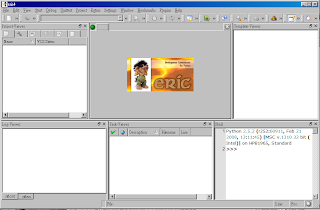 恭喜你,可以開始用囉!!!
當你希望使用eric的時候,除了下載eric外,你還需要
1. Python -- 你要學習它,怎會不下載它呢?!我用的是2.5.2版
2. Qt4 -- 你可以下載4.4.0 open source版,順帶你就需要下載MinGW(我用5.1.4版,gcc是3.4,記得一定要下載make)
3. QScintilla2, sip and PyQt4 -- 這三個都是使用eric必要的套件, 都可以在Riverbanking Computing的網站找到並下載.這三個套件的使用版本是2.2, 4.7.6, 4.4.2
準備事項
下載之後,因為都需要解開到一個目錄裡面,你一定要清楚你所安裝的目錄在哪裡,以下指令都是鄉對於套件的目錄所給的路徑.
步驟:
1. Install Python,Qt4--這兩個都是執行檔,輕鬆簡單,甚至...就是一步步地按下去就好.但是Qt4要記得在安裝好了之後run一下build debug libraries.
2. Build and install sip
>python configure.py -p win32-g++
>make
>make install
3. Build and install QScintilla2
>cd Qt4
>qmake qscintilla.pro
>make
>make install
4. Build and install PyQt4
>python configure.py
>make
>make install
5. Build and install QScintilla2 Python bindings
>cd Python
>python configure.py
>make
>make install
copy Qscintilla2\Qt4\Release\qscintilla2.dll c:\windows\system32
6. Install eric4
python install.py
之後你在eric目錄裡面會找到eric4.bat(依照我的例子),執行它,你就會看到一個這樣的畫面!
 恭喜你,可以開始用囉!!!
C++ -- 就從Qt4開始好了
坦白說,如果要寫單純的console程式,對我而言並沒有問題. 但是現在已經是GUI當道,寫出來的小玩意,如果沒有GUI的介面,那我猜大概也不會有太多人想要玩。所以就只好開始找,應該用那個GUI平台來當我的工具了。
因為要用的是C/C++, 又希望可以不要受到Windows的限制,所以跨平台也是重點. 此外,因為我是非英語系的人,多國語言對我來說也很重要, 因此就用這三個條件來找吧!
1. Qt4 -- 它算是首選,不僅已經開發許久,加上還是我最喜歡的挪威人開發的(以前有過很短的時候,代理一堆挪威科技...無緣啊),多國語言、C/C++、跨平台等等都有,而且在open source的套件裡面,最嚴謹完整,開發平台也是我希望使用的MinGW,你也可以用Eclipse+CDE來開發,開發團隊也把必要的套件都幫你弄好,真的是讓你專注在開發軟體上就好!故而當然是首選囉!加上國內還有人弄了完整的學習筆記,整個是中文的,你還想挑剔啥?!
2. Ultimate++ -- 最早我的選擇是它,因為它可以支援Visual C++ Express 2005/2008, MinGW等編譯器. 但是不知道是我真的太笨,還是研究不深, 安裝上很單純,也有TheIDE當作工具,但是有幾個範例就是無法成功編譯(如SDL, Homebudget等等). 開發團隊對自己套件內所提供的範例都沒辦法用自己給的玩意來成功編譯,你覺得呢?!
3. wxWidget -- 很早就玩過,但是並不太想用,搞不好,過幾天又會回頭
4. The FOX toolkit -- 一直無法成功編譯, 怪怪的玩意...
不管怎樣,就從Qt4 open source開始吧!!!
因為要用的是C/C++, 又希望可以不要受到Windows的限制,所以跨平台也是重點. 此外,因為我是非英語系的人,多國語言對我來說也很重要, 因此就用這三個條件來找吧!
1. Qt4 -- 它算是首選,不僅已經開發許久,加上還是我最喜歡的挪威人開發的(以前有過很短的時候,代理一堆挪威科技...無緣啊),多國語言、C/C++、跨平台等等都有,而且在open source的套件裡面,最嚴謹完整,開發平台也是我希望使用的MinGW,你也可以用Eclipse+CDE來開發,開發團隊也把必要的套件都幫你弄好,真的是讓你專注在開發軟體上就好!故而當然是首選囉!加上國內還有人弄了完整的學習筆記,整個是中文的,你還想挑剔啥?!
2. Ultimate++ -- 最早我的選擇是它,因為它可以支援Visual C++ Express 2005/2008, MinGW等編譯器. 但是不知道是我真的太笨,還是研究不深, 安裝上很單純,也有TheIDE當作工具,但是有幾個範例就是無法成功編譯(如SDL, Homebudget等等). 開發團隊對自己套件內所提供的範例都沒辦法用自己給的玩意來成功編譯,你覺得呢?!
3. wxWidget -- 很早就玩過,但是並不太想用,搞不好,過幾天又會回頭
4. The FOX toolkit -- 一直無法成功編譯, 怪怪的玩意...
不管怎樣,就從Qt4 open source開始吧!!!
訂閱:
文章 (Atom)
